
This article applies to the following ScreenBeam products: 1xxx-Series, 960, and 750
You can update the firmware from a USB or the Local Management Interface (LMI)
USB Method
Note: This requires a FAT 32 formatted USB drive with the "install.img" file and autorun folder from the desired firmware on the root of the drive.
-
Plug your USB flash drive into the ScreenBeam, and you will see the message “Please wait for USB update.”
-
The ScreenBeam may go through various loading screens and reboot multiple times.
-
You’ll know that the updates are finished when the ScreenBeam returns to the Ready to Connect screen and the new firmware version is displayed in the lower-left corner of the screen. At this point, you can remove the USB flash drive.
Check out our video on the USB method in this article.
LMI Method
1. Access the LMI (How Do I Log In To The Local Management Web GUI )
2. Open the Firmware update tab. Click on browse.
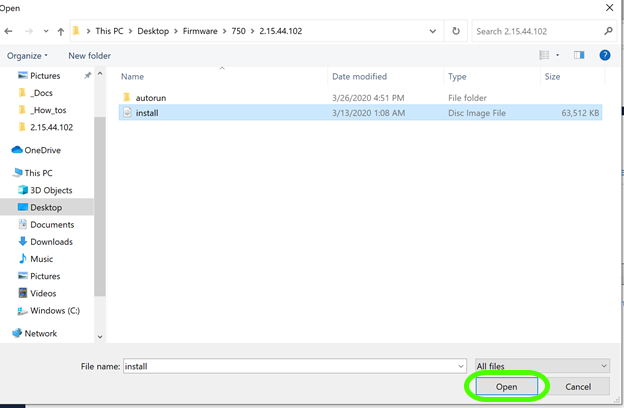
3. Navigate to the install file and click Open.
4. Click on Apply. At this point, you will see a message that states the Firmware is being transferred to the receiver with a status bar. Once the transfer is complete, the ScreenBeam will disconnect from the device and display a message that the firmware is updating.
5. The ScreenBeam may go through various loading screens and reboot multiple times.
6. You’ll know that the updates are finished when the ScreenBeam returns to the Ready to Connect screen and the new firmware version is displayed in the lower-left corner of the screen.