
Go to https://www.screenbeam.com/support, locate your product and download the latest receiver firmware.
To update firmware for one or more receivers, follow this procedure:
-
Ensure the receiver’s firmware update image resides on an HTTP server.
-
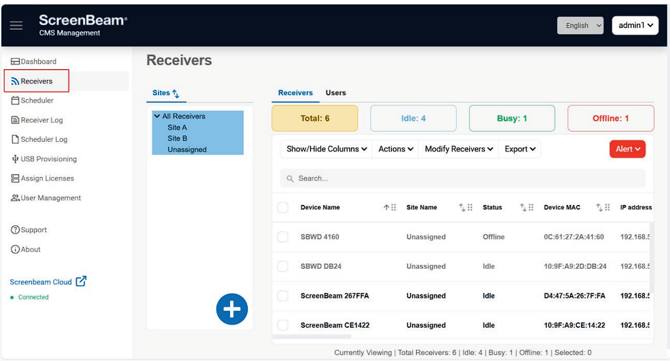
Go to the Receivers page by clicking Receivers on the left pane.
-
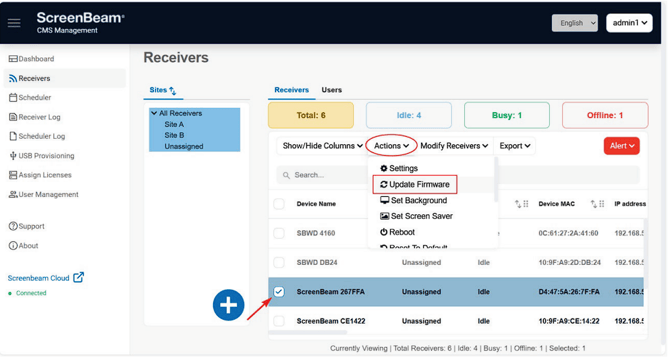
Select one or more receivers on the Receivers pane, and then select Actions > Update Firmware.
-
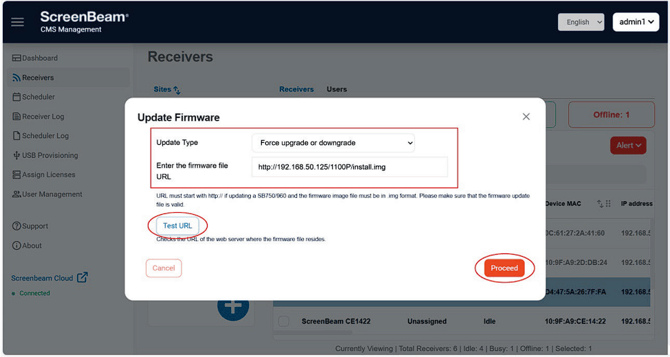
The Update Firmware window appears. Select an Update Type, enter the firmware file URL in the Enter the firmware file URL box, and click Proceed.
-
Per receiver’s setting: The selected receivers will be upgraded to a higher version if firmware upgrade is enabled for the receiver. Otherwise, the firmware update will not be executed.
-
Force upgrade to a higher version: The selected receivers will be upgraded to a higher version no matter if firmware upgrade is enabled for the receiver or not.
-
Force upgrade or downgrade: The selected receivers will be upgraded to a higher version or downgraded to a lower version no matter if firmware upgrade is enabled for the receiver or not.
-
Special firmware update: The receiver will be updated to a special firmware. Note: Click the Test URL button to check the validity of the URL if desired.
-