
Organizations deploying ScreenBeam 1xxx-series wireless display receivers increasingly rely on ScreenBeam Cloud to centralize license management, enable browser-based administrative tools, and unlock powerful SaaS functionality such as Message Manager, Alert+, Signage+, and Orchestrate.
If you're getting started, this guide walks you through what ScreenBeam Cloud is, the requirements, and the step-by-step process to create your account, bind it to CMS Enterprise, and activate your cloud features.
What Is ScreenBeam Cloud?
ScreenBeam Cloud is ScreenBeam’s secure, multi-tenant SaaS platform designed to extend the capabilities of CMS Enterprise and your ScreenBeam 1xxx-Series receivers.
It manages all cloud-enabled products in one place, including:
-
Administrative Tools
-
Message Manager
-
Alert+
-
Signage+
-
-
Instructional Tools
-
Orchestrate
-
Cloud-Hosted Admin Tools
ScreenBeam Cloud hosts modern browser-based applications that require no local installation:
-
Message Manager & Alert+: Quickly send announcements or safety alerts to any ScreenBeam-connected display.
-
Signage+: Manage signage content (layouts, images, schedules) directly from your cloud dashboard.
The result is a flexible hybrid management model ideal for large-scale education and enterprise deployments.
Requirements to Use and Sign Up for ScreenBeam Cloud
Before registering or requesting access, confirm the following technical and licensing prerequisites.
1. CMS Enterprise Requirements
- CMS Enterprise version 4.4.14 or later
- Version 4.4.15+ is recommended for full Administrative Tools compatibility
- Windows 10/11 Enterprise or Windows Server 2019+
- 8–16 GB RAM recommended
- At least 30–50 GB of available disk space
2. Supported ScreenBeam Receivers
ScreenBeam Cloud supports 1xxx-series devices, including:
- 1100 Plus
- 1000 EDU Gen 2 / 1000 EDU
- FLEX
Minimum firmware versions vary by feature:
-
Message Manager / Alert+: 11.x.18.3+
-
Orchestrate: 11.x.17.3+
3. Licensing Prerequisites
You must have at least one license for cloud-enabled products:
-
Administrative Tools
-
Instructional Tools / Orchestrate
Licenses are activated inside your Cloud tenant under License Management and can later be assigned to receivers inside CMS Enterprise.
4. Network Requirements
Your CMS server and any cloud-enabled receivers must reach:
https://cloud.screenbeam.com
✓ Allow outbound HTTPS/443
✓ Whitelist the domain in any filtering system
✓ Exclude it from SSL inspection/decryption
Browser requirements:
-
Latest Microsoft Edge or Google Chrome recommended
How to Sign Up for ScreenBeam Cloud and Bind to CMS Enterprise
Signing up for ScreenBeam Cloud
This step allows your licenses and cloud tools to flow between Cloud and CMSE.
- Open CMS Enterprise and log in with a SysAdmin user account.
- Select Connect to ScreenBeam Cloud and select the Connect Now button.
- A browser window will open prompting you to log in to ScreenBeam Cloud.
- Click on Sign Up.
- Accept the Terms and Conditions to continue.
- Proceed and fill out the account creation form.

- Click the Create Account button
(ScreenBeam Cloud will create your account and send a verification email to the address you entered in the Email field on the Sign Up for ScreenBeam Cloud page.) - Check your inbox for an email titled “ScreenBeam Cloud User Verification” sent from cloudsupport@screenbeam.com. Open the message and click the **Verify Email Now** link.
- Your account will be activated successfully when the Your email has been
successfully verified. You may now login to your account.
Note: When you complete the sign-up process, ScreenBeam Cloud creates a dedicated tenant for your organization and designates the registered user as the account owner. If your organization requires additional administrators for management purposes, the account owner can invite other users to join the tenant in ScreenBeam Cloud and assign appropriate roles. This ensures the account owner maintains full control over each user’s access and privileges.
Bind CMS Enterprise to ScreenBeam Cloud
-
Return to CMS Enterprise dashboard
-
Click on Connect Cloud and select Connect Now.
-
Enter the credentials to the ScreenBeam Cloud login page and provide a friendly name for the CMS.
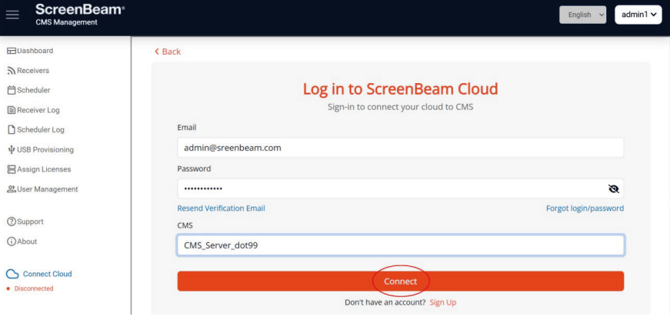
- Verify CMS Enterprise is connected to ScreenBeam Cloud.
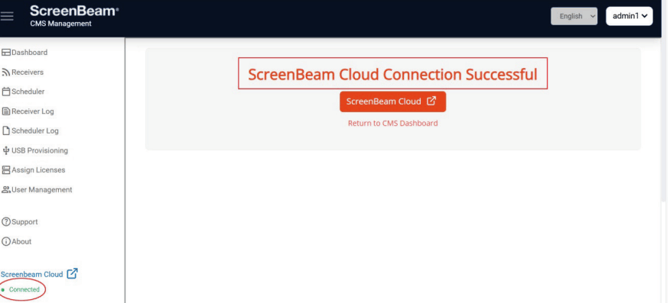
Signage content can be published
Final Checklist
Before you begin using ScreenBeam Cloud, confirm:
✔ CMS Enterprise 4.4.15+ installed
✔ Supported 1xxx-series receivers with correct firmware
✔ Internet access allowed to cloud.screenbeam.com
✔ Cloud tenant created by ScreenBeam
✔ Cloud admin can log in
✔ CMSE successfully bound to Cloud
✔ Licenses activated and assigned
With these steps completed, your organization is ready to leverage the full power of ScreenBeam Cloud.