
This article is applicable to ScreenBeam 1100 Plus and 1000 EDU Gen 2 products.
Modern classrooms are shifting from passive, lecture-only environments to active learning spaces where students collaborate, engage dynamically with content, and interact seamlessly with instructors. ScreenBeam Active Learning enables this transformation by allowing instructors to switch between displays, share content to student group, and manage multiple screens wirelessly.
Whether you're deploying a single Active Learning classroom or scaling to an entire campus, ScreenBeam makes setup fast and intuitive. This guide provides a concise overview to help IT teams and instructors get started quickly.
What is Active Learning?
Active Learning refers to instructional environments where students work together in small groups, share ideas, and interact directly with digital content. Instead of watching one instructor screen, students actively participate through collaborative exercises displayed on their own grouped displays around the room.
ScreenBeam Active Learning enables:
-
Wireless content sharing from teacher and student devices
-
Instructor-controlled display switching between groups
-
Student collaboration with fast transitions
-
Flexible room designs with multiple displays
-
Browser-based management (no app required)
Setup Instructions for ScreenBeam Active Learning
1. Prepare the Hardware
-
Install one ScreenBeam receiver per display in the classroom.
-
Label each receiver clearly (e.g., Front Display, Group A Left, Group A Right).
-
Connect each receiver to:
-
Power
-
HDMI to its display
-
Ethernet network with Internet access
-
-
Update each receiver to the latest firmware version.
- Utilize CMS Enterprise for batch management.
2. Obtain and Activate an Evaluation License
(Skip this step if your evaluation kit includes a pre-loaded Active Learning license)
ScreenBeam Active Learning requires an Active Learning license that is activated and managed through ScreenBeam Cloud.
If you need a trial/evaluation license
-
Contact your ScreenBeam sales representative or partner to request an Active Learning license.
-
Look for an email from license@screenbeam.com
2. Activate the license in ScreenBeam Cloud
-
Access ScreenBeam Cloud from your ScreenBeam CMS Enterprise.
-
Sign in or create an account for your organization (refer to this article).
-
Navigate to Licensing → Add License.
-
Enter your evaluation license key or confirm the pre-assigned license.
-
Ensure all receivers are online in ScreenBeam Cloud so they can obtain the license automatically.
Tip: The evaluation kit may already include the license. If so, simply verify that the receivers show an Active Learning license: Active in the UI.
3. Enable Active Learning feature
-
Access ScreenBeam receiver via the Local Management or CMS Enterprise
-
Find the Active Learning tab
-
Enable the service
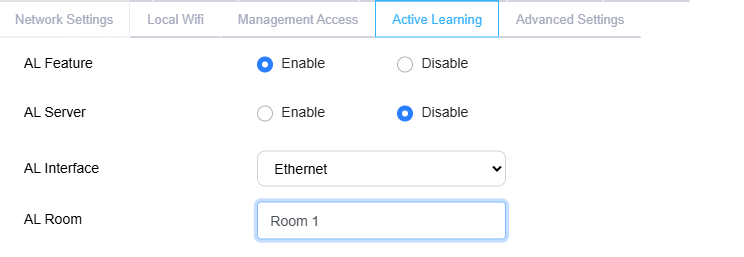
4. Create the Active Learning Room
-
Use CMS Enterprise or access the receiver’s Local Management Interface (LMI).
-
Go to Active Learning → Room Setup.
-
Select Create New Room.
-
Name the Active Learning room (e.g., Physics Lab 101).
-
Add all receivers that belong to this classroom.
-
Assign each receiver to a group and display position.
-
Save the configuration.
Tip: Ensure all receivers use the same network segment and time settings for best performance.
5. Connect Instructor and Student Devices
For Instructor
-
Join the same network as the receivers.
-
Open a browser and go to the Active Learning URL shown on the instructor display.
-
Enter the Room Code (if enabled).
-
The instructor now sees all group thumbnails and can manage the room.
Tip: For the best experience, use a dedicated tablet or touchscreen PC configured in kiosk mode as the controller.
For Students
-
Students join the classroom Wi-Fi.
-
They mirror or cast their screen using:
-
Windows (Miracast)
-
macOS/iOS (AirPlay)
-
ChromeOS/Chromebook (Cast)
- HDMI cable
-
-
Students share to the receiver assigned to their group.
6. Use Active Learning Controls
Once connected, the instructor can:
-
Send any source to any display
-
Pull student content to the front of the room
-
Allow group collaboration
All control happens through the Active Learning Web UI, requiring no software installation.
7. Test the Room
Before class, verify:
-
Each display receives content
-
Instructor can switch content between pods
-
Students can connect reliably
-
Network multicast/peer-to-peer rules support casting
-
All receivers report “Online” in the Active Learning interface